Search Blog


​

Add Recent Comment widget in Blogger

It is very important thing to take part in discussion and to reply visitors comment.commenting box is already added by blogger as default then you can ask why there is need to add this widget, well i tell you,this widget can show most recent and discusses post.but if you want to show recent comment on home on all post and pages you have to install a widget in blog.

recent comment widget


how to install add recent comments widget

Adding it is very simple but first i wan to tell you about his widget.
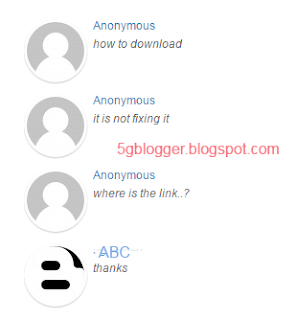
It shows five number of most recent comments and it show beautiful round thumbnail.If some one had not set image in his profile then it show blank avatar.

login to blogger go to layout and
add html/javascript gadget 
Name the title  recent comments

now add the blow code there

<style type="text/css">    ul.latest_recent_comments{list-style:none;margin:0;padding:0;}    .latest_recent_comments li{background:none !important;margin:0 0 6px !important;padding:0 0 6px 0 !important;display:block;clear:both;overflow:hidden;list-style:none;}    .latest_recent_comments li .avatarImage{padding:3px;background:#fefefe;-webkit-box-shadow:0 1px 1px #ccc;-moz-box-shadow:0 1px 1px #ccc;box-shadow:0 1px 1px #ccc;float:left;margin:0 6px 0 0;position:relative;overflow:hidden;}    .avatarRound{-webkit-border-radius:100px;-moz-border-radius:100px;border-radius:100px;}    .latest_recent_comments li img{padding:0px;position:relative;overflow:hidden;display:block;}    .latest_recent_comments li span{margin-top:4px;color: #666;display: block;font-size: 12px;font-style: italic;line-height: 1.4;}
    .latest_recent_comments span{display:none;}</style>
<a href="http://5gblogger.blogspot.com/2015/07/add-recent-comment-widget-in-blogger.html" alt="recent comments widget" ><img src="http://img1.blogblog.com/img/blank.gif" /></a>
<script type="text/javascript">//<![CDATA[    // Recent Comments Settings    var    numComments     = 8,    showAvatar     = true,    avatarSize     = 60,    roundAvatar    = true,    characters     = 30,    showMorelink    = true,    moreLinktext    = "More �",    defaultAvatar     = "http://www.gravatar.com/avatar/?d=mm",    hideCredits    = true;//]]></script><script src="http://yourjavascript.com/12251714239/mybloggerbuzz-com.js"></script><script src="your blog url/feeds/comments/default?alt=json&callback=latest_recent_comments&max-results=5" type="text/javascript"></script>


Find your blog url in above script.
you can see in the bottom.
and replace it with your blog url.

 save it and your process complete.

Note: feel free to ask if you face any problem
{ Read More }

Add Popular Post Gallery Slider in Blogger

Blogger widget

Blogger give to freedom to edit your blog as you want  you may have visited a blog and you see gallery post slider .popular post  gallery slider is very charming and useful it increase beauty of your blog.Also easy for user to use.default gadget of popular post is available by blogger you can install it.To  install default gadget given by blogger go to layout and then choose popular post and save it.

This widget of popular post is stylish.In this widget slider move post from left to right and right to left.some people like simple widget put gallery slider in good for video  blog.It look more impressive and eye catching but this is quite difficult to add in blogger because you have to change some codes in setting so if you want to made a gallery of popular post you need a little effort.I try my best to describe step by step.


how to make popular post gallery slider

step1: Go to blogger and login  then go to template
edit it. but before edit get back up of your
template because gallery slider may not
consistent with your template.

step2: click any where in code area and press ctrl+f 
and search code given below 


step3 click on arrow beside ]]></b:skin> and you 
find it ]]></b:skin> again.

step4: paste the given code  above ]]></b:skin>


step5: now search for this


step6: just above it past given code


step7: search this code


if you do not find search this


step8: just above it paste following code


Save your template and view your
blog  to confirm.
{ Read More }

Adding Facebook Like Fan Page Box In Blogger

facebook  fan page

adding facebook fan page in blogger is very useful
thing  that  help user  to like you page . in this way 
you get more  likes you your facebook page likes.
facebook page hep user intouchwith your activity
 and so that they can reach you easily.


how to add facebook fan page in blogger

how to add facebook fan box in blogger
step1:first copy your facebook page url and then go to
link below.


step2:you must login to your facebook account and paste 
the url of page that you want to add in blogger.
select width and height and after that press get code.

step 3: copy the code given by facebook and
go to layout of blogger and add a new gadget of 
html/javascript and paste that code in content. save
it and you have complete it.


 visit your blog and your facebook page is appeared 
 it also show your likes and some of people that
 already liked your page.
{ Read More }

Make Numbered page instead older post in blogger

pages in blogger

when you made pages it automatically appear
on your home page and after 7 pages blogger
give a option of older post given below so that 
user can  go to next topics. in this way it may 
feel different or you have seen other blogs that 
have numbered pages in their blog and you also
want to add numbered pages it also help
user to go to  any page directly so to make
numbered pages in blogger you need to do 
some steps ..

how to make numbered page


step 1: go to template and edit html


step 2:click any where the code area and press ctrl +f
and search


just above ]]></b:skin> paste the code given below


and save the template. and see you have done it .
conform it to visit your blog.so this how you can add 
numbered pages instead of older post or newer post.
{ Read More }

Related Post Awesome Widget With Hover Effect For Blogger

why to add  related post widget

If you have not add related post widget in
your blog , you should add this help user
you communicate with your blog easy and 
increase your page views and so that if you have
put any ads in your blog you get more page views.
so this is very useful thing for blogger. you can 
add some effects and action also , too much
effect make your  blog heavy and it is not good.
it is advised that use simple and to the point.


this is how your  related post widget looks in your
blog . it is very simple to add in blogger.

how to add blogger related post widget

blogger let you to add related post widget
in template.

step1: fist login to blogger and select your blog
and then go to template and edit html  

step2 : click any where inside template code area press
 ctrl+f and search box appear search.

Search this code
</head>

step3 Paste the below code above </head>


<!--Related Posts with thumbnails Scripts and Styles Start-->
<b:if cond='data:blog.pageType == &quot;item&quot;'>
<style type='text/css'>
#related-posts{float:left;width:auto;}
#related-posts a{border-right: 1px dotted #eaeaea;}
#related-posts a:hover{background: #EEEEEE;}
#related-posts h2{margin-top: 10px;background:none;font:18px Oswald;padding:3px;color:#999999; text-transform:uppercase;}
#related-posts .related_img {margin:5px;border:2px solid #f2f2f2;object-fit: cover;width:110px;height:100px;transition:all 300ms ease-in-out;-webkit-transition:all 300ms ease-in-out;-moz-transition:all 300ms ease-in-out;-o-transition:all 300ms ease-in-out;-ms-transition:all 300ms ease-in-out;-webkit-border-radius: 5px;  -moz-border-radius: 5px; border-radius: 5px; }
#related-title {color:#666;text-align:center;padding: 0px 5px 10px;font-size:12px;width:110px; height: 40px;}
#related-posts .related_img:hover{border:2px solid #E8E8E8;opacity:.7;filter:alpha(opacity=70);-moz-opacity:.7;-khtml-opacity:.7}</style>
<script type='text/javascript' src='http://helplogger.googlecode.com/svn/trunk/relatedposts.js' />
</b:if>
<!--Related Posts with thumbnails Scripts and Styles End-->


Find this code 


<b:includable id='postQuickEdit' var='post'>


step 4 paste the below code above </b:includable>


<!-- Related Posts with Thumbnails Code Start-->
<b:if cond='data:blog.pageType == &quot;item&quot;'>
<div id='related-posts'>
<b:loop values='data:post.labels' var='label'>
<b:if cond='data:label.isLast != &quot;true&quot;'>
</b:if>
<script expr:src='&quot;/feeds/posts/default/-/&quot; + data:label.name + &quot;?alt=json-in-script&amp;callback=related_results_labels_thumbs&amp;max-results=5&quot;' type='text/javascript'/></b:loop>
<script type='text/javascript'>
var currentposturl=&quot;<data:post.url/>&quot;;
var maxresults=4;
var relatedpoststitle=&quot;<b>You might also like:</b>&quot;;
removeRelatedDuplicates_thumbs();
printRelatedLabels_thumbs();
</script>
</div><div class='clear'/><div style="font-size: 9px;float: right; margin: 5px;"><a  style="font-size: 9px; text-decoration: none;" href="http://5gblogger.blogspot.com/2015/02/related-post-thumbnail-widget-blogger.html" Related Posts Widget</a></div>
</b:if>
<!-- Related Posts with Thumbnails Code End-->


save the template and enjoy beautiful widget.

To change the widget of thumbnail change width and height in the code under step3.
To change number of post shown change 4 to your number in the code under step4.
{ Read More }

How to Make Coloured Popular Post In Blogger

what are popular post

popular post are the gadget in blogger and
it show what is popular in a blog. you can
customize it as you want . mostly when you
add a gadget of popular post given by blogger
it was not very awesome and good looking.
and you want to make beautiful colour popular 
post you many need a little effort. 
you need you do some  simple steps
just paste some of code in your html and you 
will get coloured popular post widget as you 
can see below.


 how to add colour popular post in blogger

go to template and edit html and jump and expand
widget.

step1: search for this


steps2: if you have no find it paste it below this


and end it with this code


copy and paste the code given below 


search this code


paste the following code before that


now find this code 


and delete untill </b:widget> but do not
delete </b:widget>. now paste given code above
</b:widget> 


now save template and you complete the process
vist your blog and you see coloured  popular
post
{ Read More }

How To Add Alexa Rank widget In Blogger

Today my topic is on alexa.It rank your blog with traffic and other parameters.we will lean how to add ranking widget in blogger.we may in next topic learn more about alexa but this time i am only showing how to display your blog ranking.
Also add recent comment widget

alexa ranking

Adding alexa rank for blogger

First step is logging in to blogger account

go to layout and add HTML/javascript gadget

now paste the below code. use any one there are two 
styles as you can see in image below.

<a href="http://www.alexa.com/siteinfo/yoursite.com"><script  type="text/javascript"  src="http://xslt.alexa.com/site_stats/js/t/a?url=yoursite.com"></script></a>


editing layout


<a href="http://www.alexa.com/siteinfo/yoursite.com"><script  type="text/javascript"  src="http://xslt.alexa.com/site_stats/js/t/a?url=yoursite.com"></script></a>


Note: Replace yoursite.com with your blog url and save the gadget.

you can place your gadget at the right side or at footer.save the arrangements of layout and view your blog to confirm that widget is working fine
{ Read More }

IconIconIconFollow Me on Pinterest